Templates and email builder
A template is a ready-made message for one channel: an email, a Telegram message, an SMS, a Web Push notification, a webhook, and others. The same template is used by journeys, campaigns, and manual sends from the profile card. Variables fill in the customer's name, the order total, and other data.
The section is in the menu under Engagement → Templates. All roles can view templates; Manager and above can create and edit them.
Create a template
- Open Templates. In the top-right corner there's a button for each channel enabled in the project, for example Email or Telegram. Click the one you need.
- Fill in the common fields (see the table below).
- Fill in the Content block. The fields depend on the channel. For an email, these are the Subject, Preheader (the text shown next to the subject in the inbox), Email builder or HTML, and the Plain text version. If you leave the plain text version empty, it's generated from the HTML.
- Click Save. Each save increases the version number (Version 3).
| Field | What it means |
|---|---|
| Name | Visible only in the interface: in template, journey, and campaign lists |
| Channel | Chosen at creation and can't be changed later |
| Subscription topic | For example, marketing or news. Customers can unsubscribe from just this topic |
| Transactional message | Sent without checking subscription, frequency, or quiet hours, but not to a channel that is closed for the recipient: the mailbox or number doesn't exist, or the bot is blocked. Use it only for order confirmations, password resets, and similar messages. See Transactional messages and cascades |
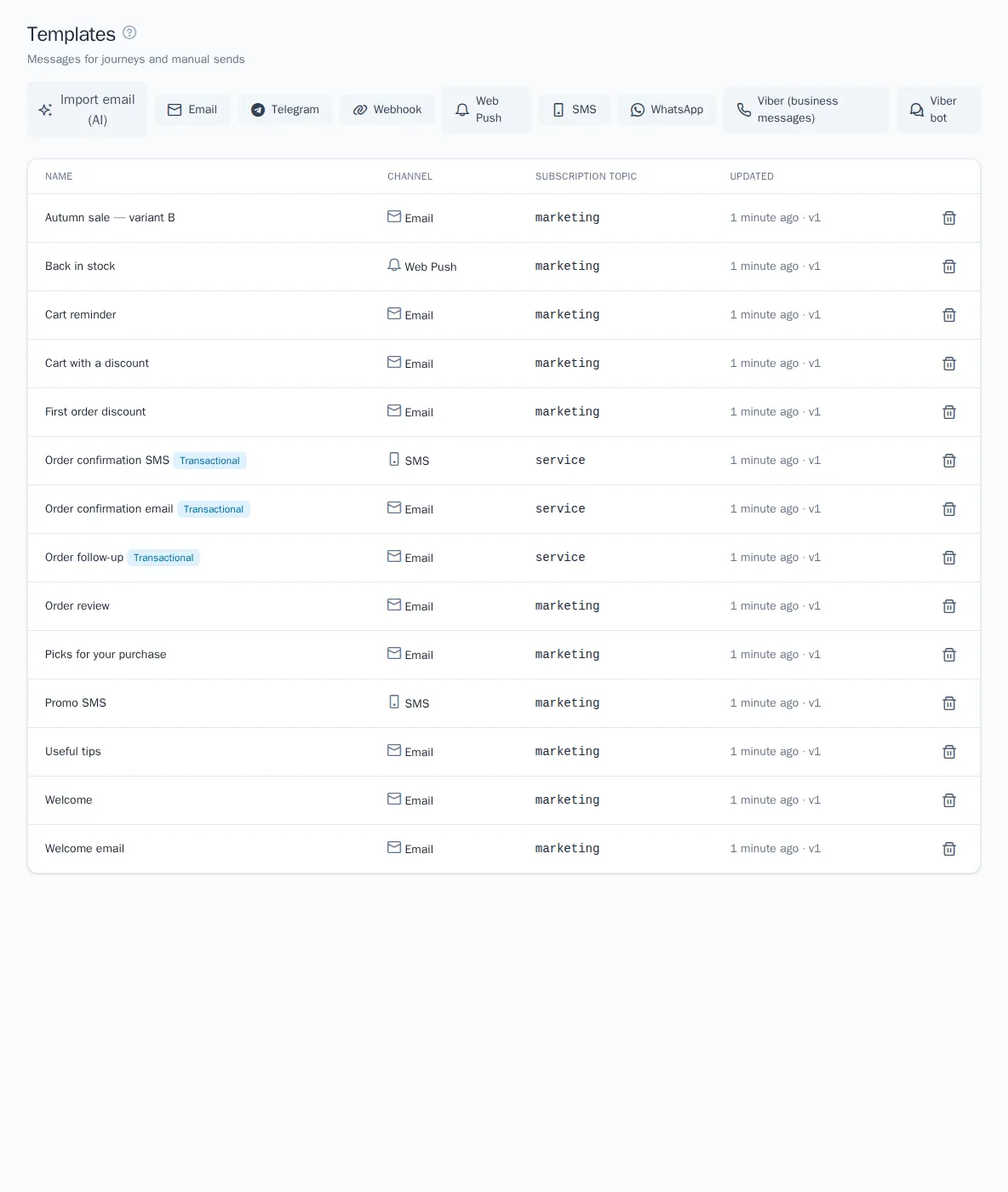
To delete a template, click the trash icon in its row in the list.
Variables
Templates are written in Twig. A variable goes in double curly braces. Expand the Variables block under the content to see the full list with examples.
| Variable | What it inserts |
|---|---|
profile.email, profile.phone, profile.user_id |
Customer identifiers |
traits.first_name and other traits.* |
Profile traits |
event.name, event.properties.amount |
The event that triggered the message |
context.data.*, context.nodes.* |
Journey data: passed on entry through the API, and the Webhook node's response |
project.name, unsubscribe_url |
The project name and the unsubscribe link |
loyalty.points, loyalty.tier, loyalty.expiring, loyalty.expire_at, loyalty.referral_url |
The loyalty program account: balance, tier, expiring points and their date, the referral link |
promo_code('welcome') |
The customer's promo code from the welcome pool: issued on sending, a sample in previews |
order.number, order.amount, order.tracking_url |
The order of a store email: number, amount, tracking link; amount with currency: {{ order.amount|money(order.currency) }} |
product('SKU-1') |
A catalog product in the email's language: name, url, image, price, old_price, currency, available, stock, as of sending (product prices and availability) |
Hello, {{ traits.first_name|default('friend') }}!
{% if event.properties.amount > 5000 %}Delivery is free.{% endif %}
Templates run in a secure sandbox. It supports if conditions, for loops, set, the date, min, and max functions, and filters such as default, date, upper, lower, capitalize, number_format, round, join, replace, striptags, and others. If a variable is missing, an empty string is inserted, so set a default where it matters. If you use a forbidden construct, you'll see the error The template uses a forbidden construct when you save. The rendered message can't exceed 512 KB.
Preview and test send
- In the Preview panel, enter a profile ID, email, or user_id and click the eye icon. If you leave the field empty, data is taken from the most recently active profile.
- For an email, switch between the Desktop, Phone, and Dark mode views.
- In the Test send panel, choose an integration. Enter your own address or chat id; otherwise the message goes to the profile's address. Click Send test: the message status appears under the button.
Test sends are available to Manager and above. Subscription, frequency, and quiet hours aren't checked. The preview has no trigger event, so event.* variables stay empty. If you don't have permission to see personal data, email and phone are masked.

Language versions
One template can contain versions in several languages. Each recipient gets the version in their profile language (the language trait), or the main version if there is no such version. The languages you can choose from are set in the project settings.
- Above the Content block, click Add language and pick a language. The new version starts as a copy of the open one: layout, images and links are already in place, you only translate the texts.
- Switch between versions with the language buttons. The main version is marked "main".
- To give recipients without their own version a different language, open that version and click Make main. Delete version removes the open version.
- Click Save. Each version is checked separately; a version with errors is marked with a warning icon.
Draft translation
To avoid translating a version from scratch by hand, open it and click Draft translation. OneTrace.ru translates the main version into the language of the open tab: the subject, preheader, text of the builder blocks, the plain-text version, and the text of SMS, push, and messenger messages. Variables such as {{ traits.first_name }}, links, images, and styling stay unchanged.
The draft is only filled into the form. Read it, adjust the wording, and click Save. If a field can't be translated without losing its variables, it stays in the original language, and OneTrace.ru shows how many such fields there are. If the version already differs from the main one, you are asked before it is replaced.
The number of drafts per month is limited by your plan; see Plans. The button is missing if translation isn't enabled in your installation.
The version is chosen like this: an exact language match first, then the language without the region (a customer with pt-BR gets the pt version), then another variant of the same language. Preview and test send show the open version, and the {{ language }} variable contains the language of the version being sent.
Email builder
In an email template, click Open the builder in the Email builder field. If the template already has HTML, the builder starts the email from scratch, and the old code is replaced when you save. OneTrace.ru builds the code for email clients, including Outlook and phones, when you save.
To the right of the canvas there are three tabs:
- Blocks: add a block. It's placed after the selected block, or at the end of the email before the footer.
- Block: settings for the block selected on the canvas. You can move blocks up and down, drag, duplicate, and delete them.
- Email: the background, email background, text and link colors, font, email width (480–800 px), padding, and how images are delivered.
| Block | Purpose |
|---|---|
| Heading, Text | Formatted text with variables, for example {{ traits.first_name }} |
| Image | An image from the media library: alt text, link, width 10–100% |
| Button | Text, link, colors, and corner radius |
| Divider, Spacer | A line and empty space |
| Columns | 2–3 columns with headings, text, images, buttons, and spacers. On phones, the columns stack vertically |
| Products | A selection from recommendations: personal, popular, Viewed together, Similar, and so on. You can show 1 to 12 products in 1–4 columns, with a price and a button. If there are no matching products, the block is left out of the email |
| Order | The order from a store email: products, totals, parcel tracking, and addresses. Emails without an order don't show the block |
| HTML | Your own code as is |
| Footer | Text and the unsubscribe link |

The Switch to HTML button on the Email tab turns the email into plain code. After that, you can't go back to the builder.
Link or attachment
| Link (CDN) | Attached to the email | |
|---|---|---|
| Email size | Light | Larger by the size of the images |
| Display | The image loads when the email is opened. If the mail client blocks images, only the alt text is shown | The image is visible right away |
The default is set in the Default image delivery field on the Email tab. For an individual image, you can change it in the Delivery field. All attachments of one email together can't exceed 1 MB. If public links aren't configured in your installation, only attachments are available.
Import a ready-made email
If the email is already designed in another service, you don't have to build it again. On the Templates page, click Import email (AI):
- Choose File and upload an email saved from your mail app (
.eml) or an.htmlpage. Or choose HTML code and paste the email code. - Click Import. AI usually needs up to a minute to process the email.
- The editor opens with a new email template: the email is split into designer blocks, images are copied to the media library, the recipient name is replaced with the
{{ traits.first_name }}variable and the unsubscribe link goes into the Footer block. Texts and links stay as in the email. - Review the template and click Save. The template doesn't exist until you save it.
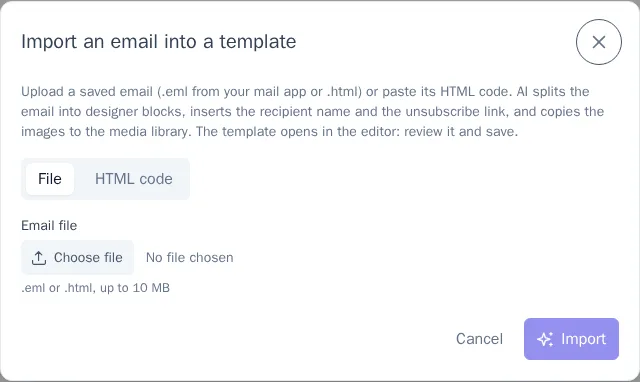

If part of the email couldn't be transferred, a list appears above the form: which images weren't copied or which blocks were skipped. If the email can't be split into blocks, it's imported as a single HTML block. Tracking pixels and the "View in browser" link are not imported.
Import is available on the Growth and Enterprise plans; the number of imports per month depends on the plan — see Plans. On the Starter plan, the button shows which plan includes the feature.
Media library
The media library opens when you add an Image block or click Choose image.
- Upload accepts JPEG, PNG, GIF, WebP, and AVIF up to 10 MB. Wide images are scaled down to 1200 px. WebP and AVIF are converted, because not all email clients display them. GIFs are kept as is, including animation.
- Uploading the same file again doesn't create a copy.
- You can't delete an image that's used in a template until you remove it from the template.
- The space taken by images counts toward your plan's limit.
