Signup forms on your website
Signup forms collect contacts on your website without a developer: a popup, a flyout, an embedded form, or a bar at the top or bottom of the page, and on the page of an out-of-stock product, the Notify when available form. The email or phone goes into the visitor's profile together with marketing consent, and you can give a promo code for subscribing.
Forms are on the Website → Forms tab. User and above can view them; Manager and above can create and edit them. Forms are shown by the tracker, so there's nothing to install.
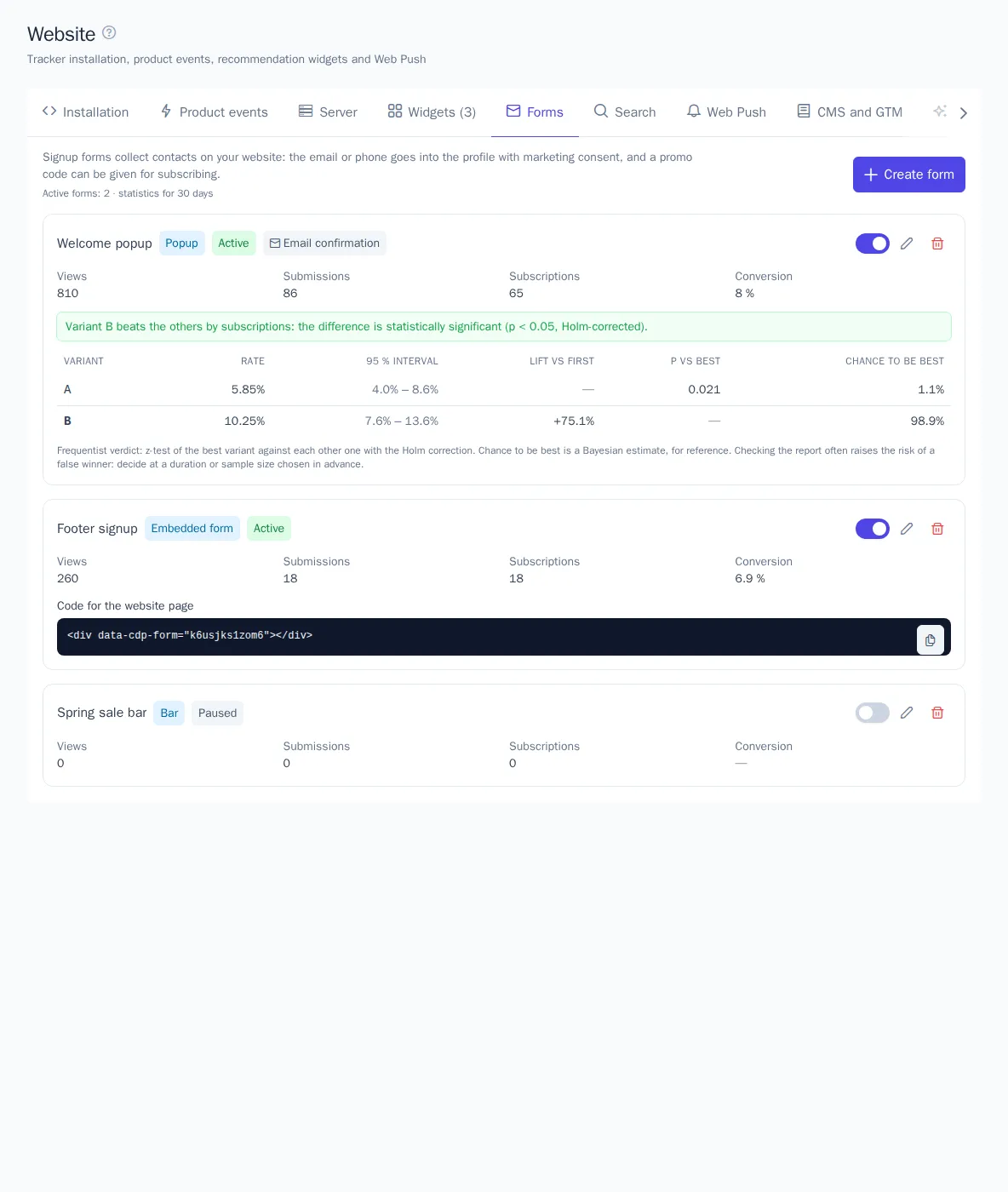
Form list
Each form shows its type, status, and statistics for 30 days:
- Views: how many times the form was seen;
- Submissions: how many times it was submitted;
- Subscriptions: confirmed addresses (or addresses accepted right away if confirmation is off);
- Conversion: subscriptions out of views.
The switch turns the form on and pauses it. An embedded form has the code for the website page below its statistics.
Create a form
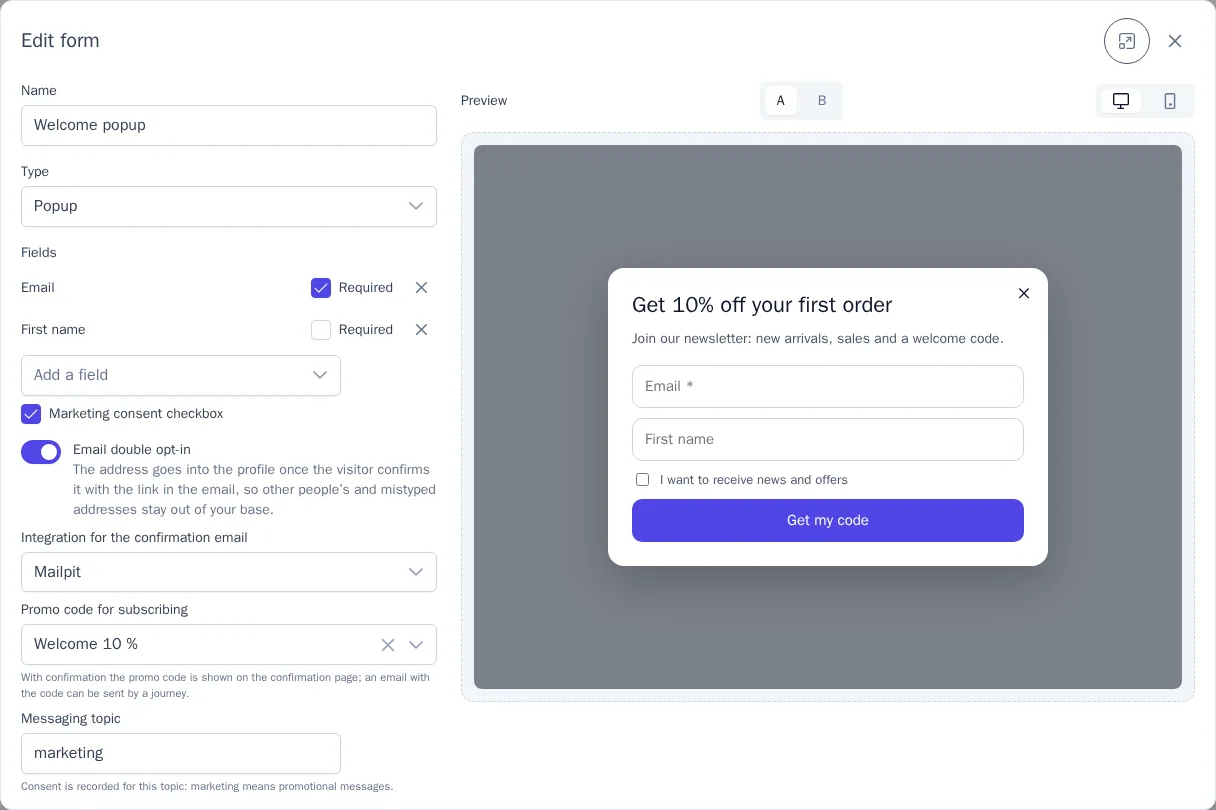
Click Create form. The settings are on the left and the preview on the right: this is how a visitor sees the form on a desktop and on a phone.
| Setting | What it does |
|---|---|
| Type | Popup: in the center of the screen; flyout: in a corner; embedded form: in the page markup; bar: full width at the top or bottom |
| Fields | Email, phone, first name, last name, date of birth; you mark the required ones. Email or phone is required |
| Marketing consent checkbox | The form can't be submitted without ticking it |
| Email double opt-in | The address goes into the profile once the visitor confirms it with the link in the email. The email is sent through the selected email integration |
| Promo code for subscribing | A code from a promo code pool |
| Messaging topic | Consent is recorded for this topic; marketing means promotional messages |
| Texts | Heading, text, button, the texts shown after subscribing, and the confirmation email, for each project language. An empty field means the standard text in the visitor's language |
| Design | Button color and image |
Turn on Show on the website and save the form. On the Starter plan, up to three forms can be active at the same time.
Double opt-in
Confirmation is on by default. Until the visitor follows the link in the email, the address doesn't go into the profile and there's no subscription. This keeps other people's and mistyped addresses out of your base, and the subscription meets GDPR requirements.
After confirming, the visitor sees a page with the success text and the promo code. The link is valid for 7 days. No more than three confirmation emails per day are sent to the same address.
Without confirmation, the contact and the promo code appear right away, and the code is shown directly in the form.
When to show
For a popup, flyout, or bar you can set display rules:
- when: right after the page loads, after a few seconds, after scrolling the page, or when the visitor tries to leave the page. On phones, "when the visitor tries to leave" means after 30 seconds on the page;
- pages: "Only on pages" and "Except pages": the address without the domain, one per line;
*means any characters, for example/catalog/*; - devices and visitors: new visitors on their first visit, returning visitors on later ones;
- frequency: how many days not to show the form after it's closed, and whether to hide it from visitors who have already subscribed.
Only one popup is open at a time. An embedded form appears wherever its code <div data-cdp-form="…"> is placed on the page.
A/B test and segments
From the Growth plan, you can add variants B, C, and D to a form: a different heading, text, button, color, or image. Visitors are split evenly between the variants, and each visitor always sees the same variant. The form list then compares subscriptions to views: which variant performs better and how confident you can be about it.
There you can also show the form only to members of segments, or to everyone except them. For example, a discount popup for those who haven't bought anything yet.
Notify when available
The Notify when available type is for the page of an out-of-stock product. The visitor leaves an email and subscribes to the restock of that particular product, and the email is sent by a journey with the Catalog trigger (product prices and availability).
- The code for the page is
<div data-cdp-notify="SKU-1"></div>, whereSKU-1is the product ID. It's shown under the form in the list. The WooCommerce, Magento 2, and 1C-Bitrix plugins place it for you. - This form has no display rules: it appears wherever its code is placed.
- These forms don't count toward the plan's limit of active forms.
- The marketing consent checkbox is optional: without it, the visitor gets only the product email.
Journeys
In a journey, choose the Form trigger and an event: "subscription completed" or "form submitted". You can leave the form empty, and then any form matches. This is how you send a welcome email: the promo code from the form is available in the template as {{ event.properties.promo_code }}.
In segments, the events "Website form submitted" and "Form subscription confirmed" are available.
To keep forms from loading on a separate website of the project, the developer passes forms: false to the tracker: cdp.init('cdp_wk_…', { forms: false }).