Reports: builder, funnels, retention, paths
Four reports work with any project event. The builder shows how an event changes over time. A funnel shows where customers drop off on the way to a goal. Retention shows whether customers come back. Paths show what customers do before and after an event. All reports are calculated from raw events, so there's nothing to set up in advance.
The reports are in the Analytics group of the project menu. All system roles can view them; Manager and above can save them. To learn how to put reports on one page and get them by email, see Dashboards and report emails.
Common to all reports
- Period. The last 7, 14, 30, 90, 180, or 365 days, or Custom dates. Days are counted in the project's time zone and include today.
- Profiles. By default, the report includes all profiles. To calculate it for only some customers, add conditions on traits, events, segments, and identifiers, just like in the segment builder. For example, "city = Berlin" or "in the VIP buyers segment".
- Property filter under an event keeps only events with the properties you need, for example
order_completedwithamountgreater than 100. - Recalculation. The report recalculates on its own a moment after any change. The same report is recalculated no more than once every 5 minutes, so the latest events may show up with a short delay.
- Copy link. The report settings are stored in the page URL. Send the copied link to a colleague, and they'll open the same report.
- Save as…, Download CSV, Email schedule: see Dashboards and report emails.
Report builder
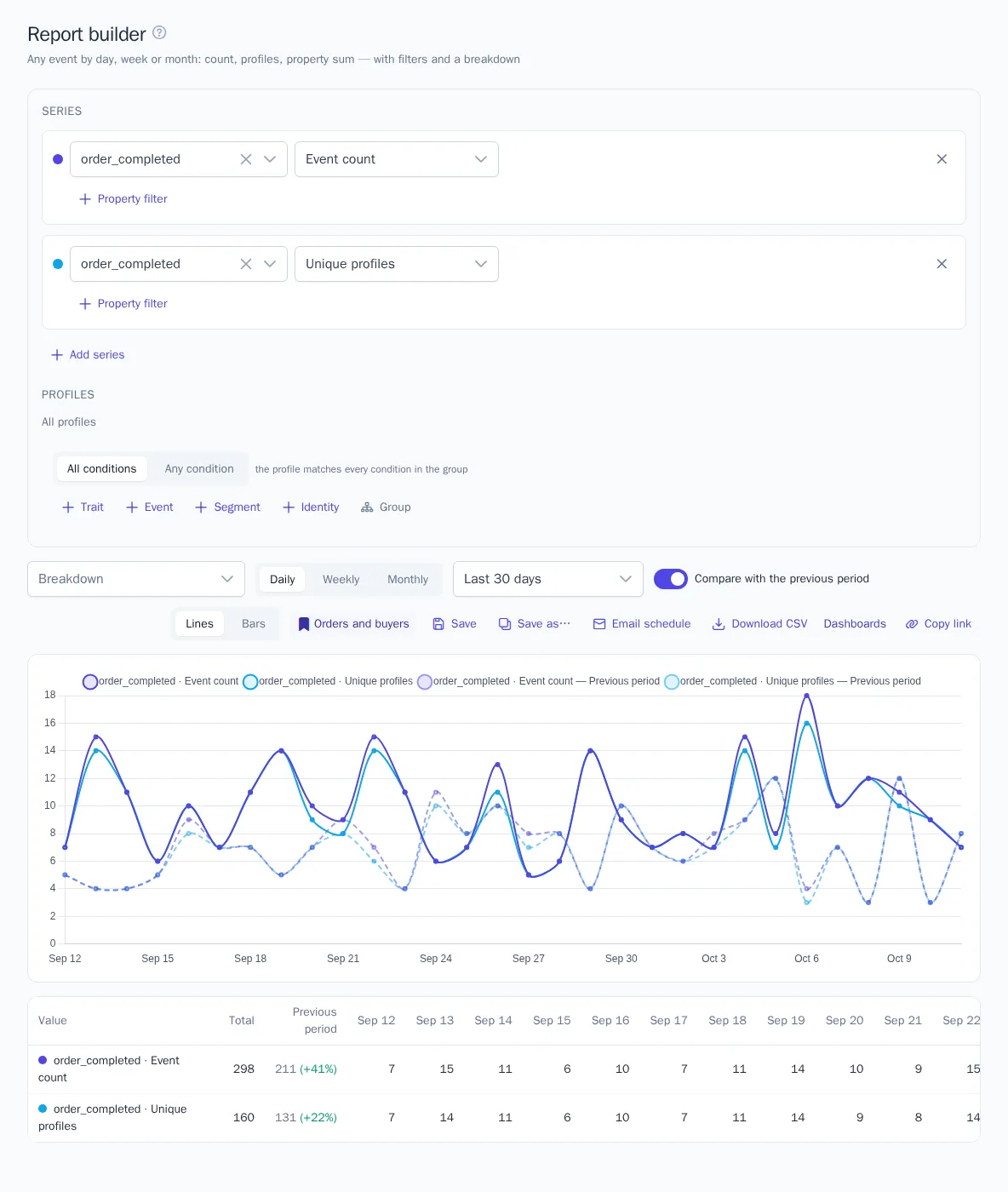
Open Analytics → Reports. A report is made of series, and each series has its own event and metric:
| Metric | What it counts |
|---|---|
| Event count | How many times the event happened |
| Unique profiles | How many customers did it. Merged profiles count as one |
| Events per profile | The average number of events per customer |
| Property sum, Property average | The sum or average of a numeric property, such as amount. Shown on the right axis of the chart |
- Choose the event and metric for the first series. Any event means all events except system ones.
- If needed, click Add series. You can add up to 5 series.
- Choose the interval: Daily, Weekly (starting on Monday), or Monthly.
- Turn on Compare with the previous period. The previous period of the same length is then drawn as a dashed line, and the table shows the change in percent.
Breakdown splits each series by value: by an event property (for example, category) or by page and campaign: page path, referring site, the utm_source, utm_medium, and utm_campaign tags, or browser language. The report keeps the 10 most frequent values and groups the rest into Other. With a breakdown, the comparison with the previous period isn't shown.
Below the chart is a table with the total for the period, the previous period, and the values for each interval. The Lines / Bars switch changes the chart type.
Funnels
Open Analytics → Funnels. A funnel shows how many customers went through the steps in order and where they dropped off.
- Choose the step events, for example
product_viewed→add_to_cart→order_completed. A funnel can have 2 to 10 steps, and the same event can be used in several steps. Use the arrows to reorder steps. - Set the Conversion window: how much time a customer has for all steps after the first one, in minutes, hours, or days, up to 90 days.
- Choose the order. In order: any other events can happen between steps. Strict order: the next funnel event must be exactly the required step.
- If needed, choose a breakdown by a first step property or by page and campaign.
The funnel period is when the customer did the first step. Later steps count within the conversion window, even if it ends after the period.
The bars show the number of customers at each step (Profiles) or their share of the first step (Share). In the table:
| Column | What it means |
|---|---|
| Reached | How many customers did this step |
| From start, From previous step | Conversion from the first step and from the previous one |
| Dropped off | How many customers reached the previous step but didn't do this one |
| Median time, Average time | How much time passed since the previous step. In large projects, time is estimated on a sample of customers, as noted below the table |
Drop-off segment. The button next to a step builds a static segment of customers who reached the previous step and didn't do this one. For example, those who added a product to the cart and didn't buy. You can use the segment in a campaign or journey right away. The segment is filled in the background and doesn't change after that.

Retention
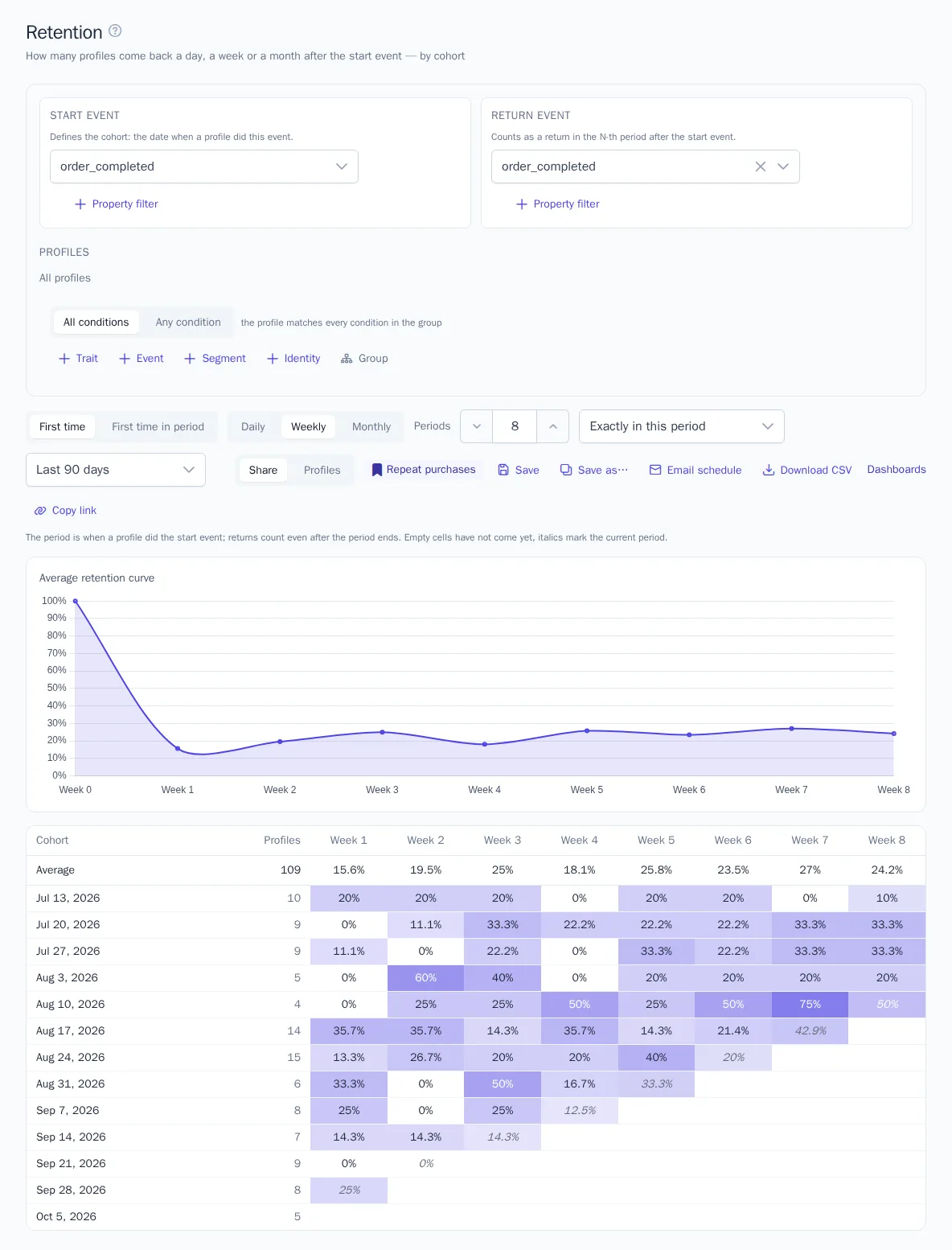
Open Analytics → Retention. The report splits customers into cohorts by the date of the start event and shows what share of them came back a day, a week, or a month later.
- Choose the Start event, for example a first purchase or a sign-up. Its date defines the cohort.
- Choose the Return event, for example a repeat purchase. If you don't choose one, any event counts as a return.
- Choose who to count. First time: customers who did the start event for the first time ever, that is, new customers. First time in period: the first such event within the selected period.
- Set the interval (Daily, Weekly, Monthly) and the number of periods: up to 30 days, 12 weeks, or 12 months.
- Choose the return type. Exactly in this period: the customer came back in the N-th period. In this period or later: they came back in the N-th period or any period after it.
The average retention curve is at the top, with the cohort table below. The darker the cell, the larger the share of returning customers. Empty cells haven't happened yet. The current period is shown in italics: its value will grow. The Share / Profiles switch shows percentages or the number of customers.
Paths
Open Analytics → Paths. The report shows frequent sequences of events after or before the chosen event. For example, what customers do after viewing a product, or how visits end before a purchase.
- Choose the Anchor event and the direction: After the event or Before the event.
- Set the number of steps (1 to 5) and the pause after which the path breaks. The default is 30 minutes, the same as a website visit boundary.
- In Exclude events, select events that get in the way, such as
$pagepage views.
For each customer, the report takes the first anchor event in the period and the events within a day of it. Identical events in a row count as one step, and system events are ignored.
The diagram shows customer flows from step to step. Path ended and Path start mean there were no events after or before. Rare variants are grouped into Other. The table below lists the most frequent complete paths, the number of customers, and their share.
