Dashboards and report emails
You can save a report of any type, put several saved reports on one dashboard, export them to CSV, and get them by email on a schedule. This way, your team sees the key numbers without setting up reports again each time.
All system project roles can view saved reports and dashboards. Manager and above can save, edit, and delete them, and set up email schedules. In a custom role, this is the Saved reports and dashboards permission. The number of dashboards and report emails depend on your plan. See Plans.
Save a report
- Set up a report on any page in the Analytics section: in the builder, funnels, retention, or paths, or in revenue, traffic sources, or attribution.
- Click Save as…, enter a name, and click Save.
The name of an open saved report appears above the chart. If you change the settings, the Save button writes the changes to the same report, and Save as… creates a new one. The report type doesn't change after saving: a funnel stays a funnel.
A saved report keeps its events, conditions, and period, and it's recalculated from fresh data every time you open it. If an event used in the report is deleted from the catalog, the report's card on the dashboard shows that the report couldn't be calculated and why.
Dashboards
Open Analytics → Dashboards. Project dashboards are at the top, and below them are all saved reports with their type and update date. The report type buttons open the right page to set up a new report.
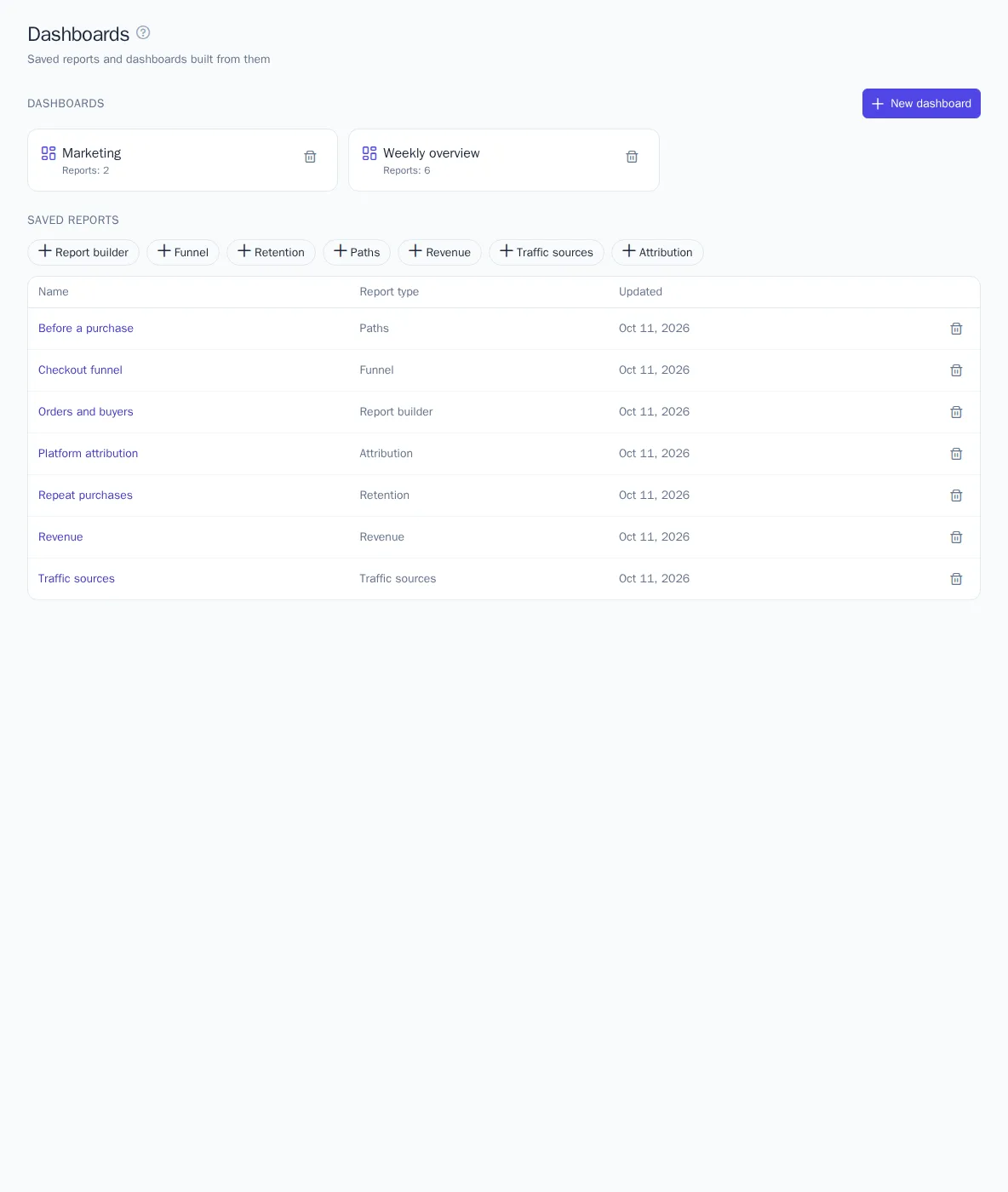
To build a dashboard:
- Click New dashboard and enter a name.
- In the Add report list, choose a saved report. A dashboard can hold up to 24 different reports.
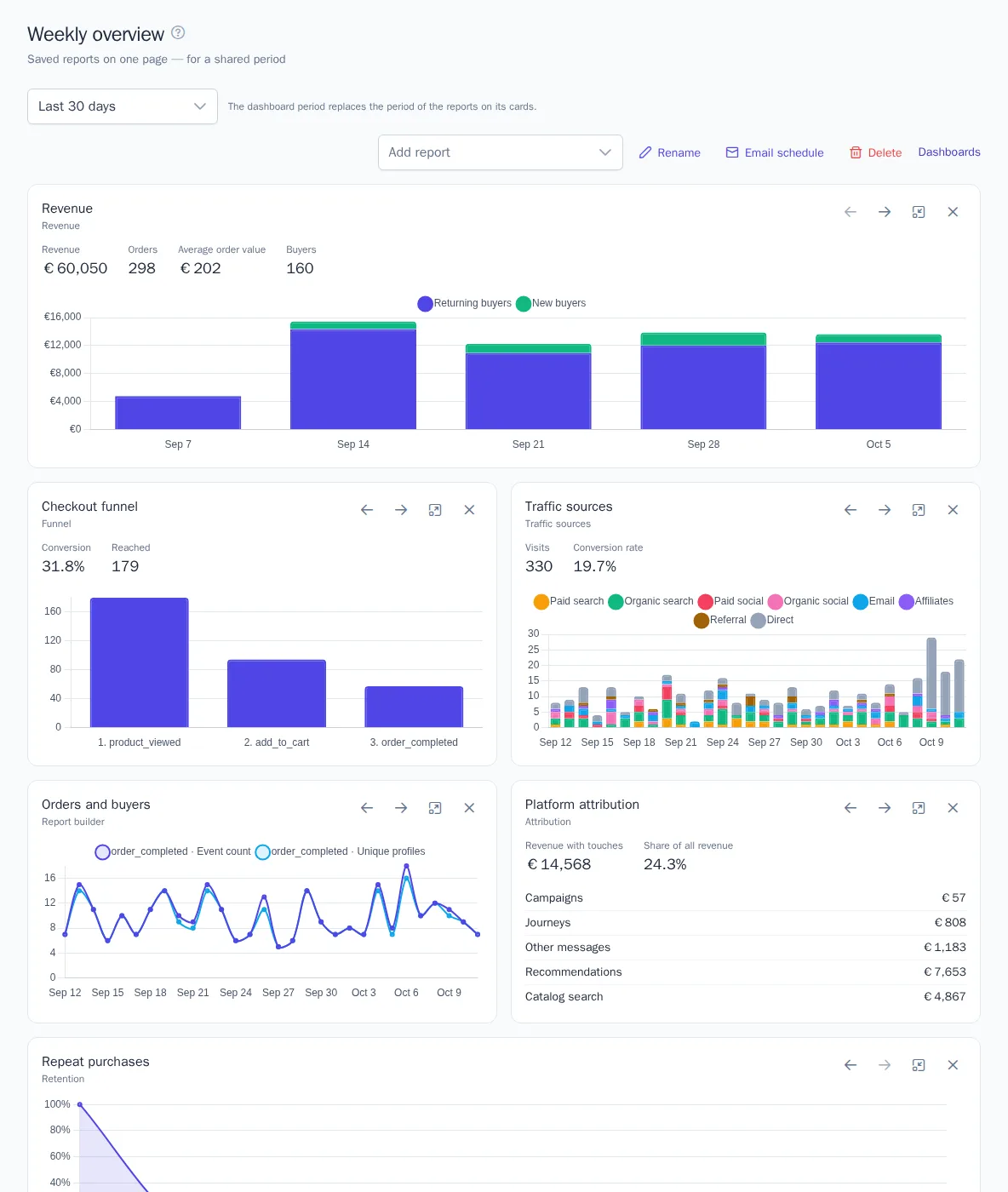
- Use the arrows to reorder the cards. Use the button next to them to make a card half or full width, and the cross to remove it from the dashboard.
Changes are saved right away. The Rename and Delete buttons change the dashboard itself. Deleting a dashboard keeps its saved reports.
A dashboard has one period for all cards: it replaces the period saved in the reports. Each card shows the key data of its report: the series chart, funnel bars, the retention curve, frequent paths, revenue metrics, visits by channel, or revenue by attribution channel. Click a card title to open the full report.
CSV export
The Download CSV button on a report page exports its table with the current settings. You don't need to save the report for this. The file is UTF-8 encoded, comma-separated, and opens in Excel, Google Sheets, and Numbers. Column headers are in the interface language. For revenue and attribution, the file contains several tables in a row, separated by a blank line: metrics, products, categories, or channels and items.
Email schedule
You can get a dashboard or a saved report by email on a schedule.
- Open a dashboard or saved report and click Email schedule.
- Choose the schedule: Daily, Days of the week (select the days), or Monthly (a day from the 1st to the 28th).
- Choose the time. It's set in the project's time zone.
- Choose recipients, up to 50 project members, and click Save.
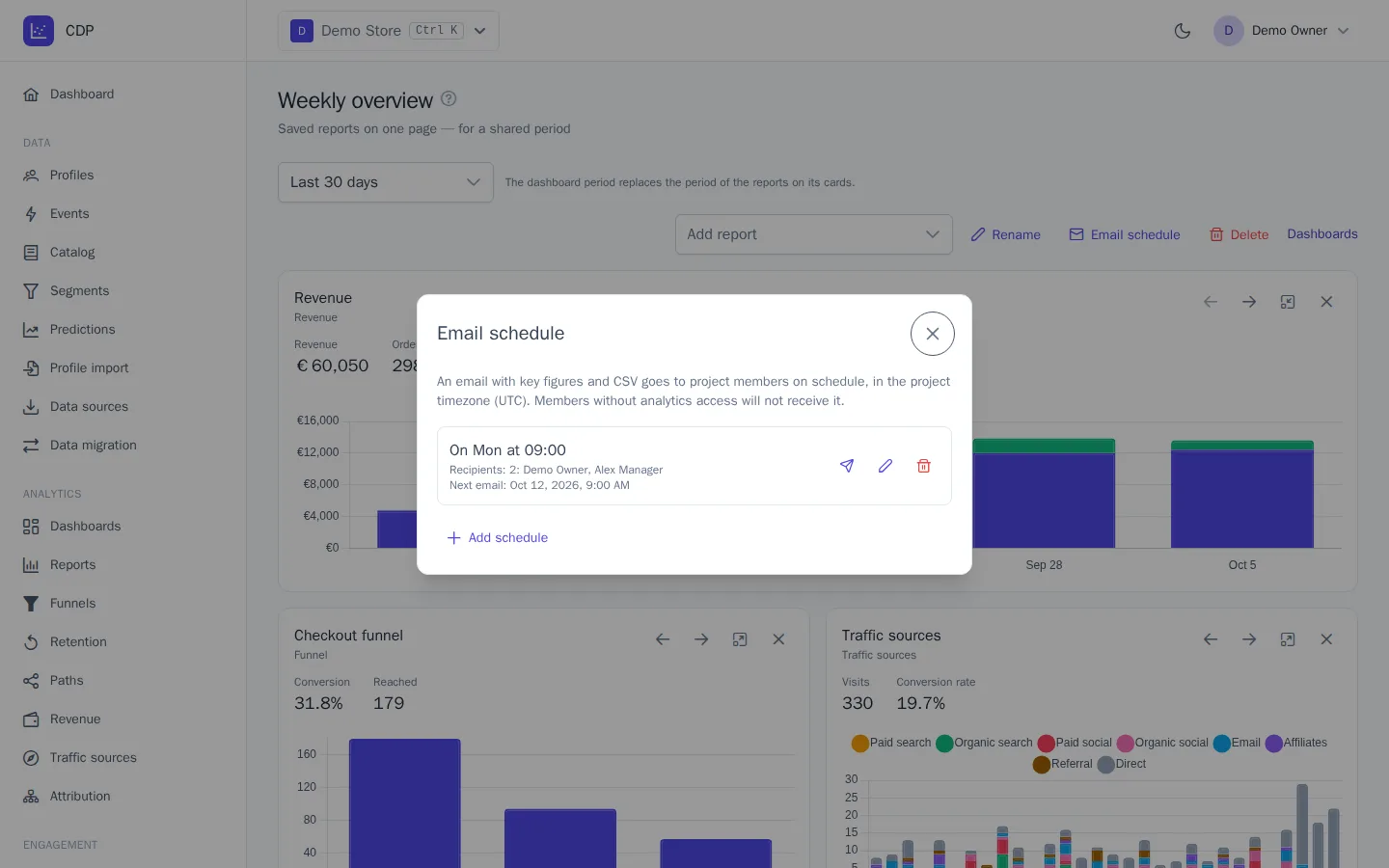
A dashboard can have several schedules, for example a daily one for the manager and a monthly one for the owner. The schedule list shows the schedule, recipients, and the time of the next email. The Send now button sends the email right away without changing the schedule.
What's in the email. Reports are recalculated at the time of sending, and a dashboard is calculated for its period. The email contains the name and period, one or two key numbers for each report, a link to the dashboard or report, and links to CSV files. The email arrives in the recipient's interface language.
Who gets it. Only members who currently have access to analytics get the email. If a recipient loses access, the emails stop. CSV links are valid for 7 days, and only a signed-in project member with analytics access can open them. So a link forwarded to an outsider won't open.
If sending fails, the reason appears in the schedule list. Missed emails, for example during maintenance, aren't sent later. Deleting a dashboard or report also deletes its schedules.
Reports via API
Developers can get any reports and saved reports, and manage dashboards, with requests to https://cdp.onetrace.ru/api/v1/analytics/…. Calculating and reading require a secret key with the Analytics permission, and changes require the Saved reports and dashboards permission. See API keys. Report calculation is limited to 30 requests per minute per key.