AI assistants (MCP)
An AI assistant such as Claude, ChatGPT, Claude Code, or Cursor can work with your project directly: answer questions about reports and customers, build segments, prepare templates and campaigns, and create journeys. To make this possible, OneTrace.ru has an MCP server: a connection based on Model Context Protocol, an open standard supported by popular AI assistants.
The assistant sees only what you or the key are allowed to see, and its changes go through the same checks as in the interface. The MCP server is available on the Growth and Enterprise plans and during the free trial (plans). On Starter, the assistant can connect and see the list of tools, but every action returns a message that the Growth plan is required.
Server address
The MCP server address is the domain you use to sign in to OneTrace.ru plus the /mcp path, for example https://crm.example.com/mcp. The connection works only on this domain.
Connect Claude and ChatGPT
Claude.ai, ChatGPT, and other browser-based assistants connect through your account and don't need a key.
- In the assistant's settings, open the connectors section and add a custom connector with the server address. In Claude.ai: Settings → Connectors → Add custom connector.
- The assistant opens the OneTrace.ru sign-in page. Sign in as usual.
- On the Connect an AI assistant screen, check which site will get access. If you didn't connect this assistant yourself, click Deny.
- Select the Project and click Approve.
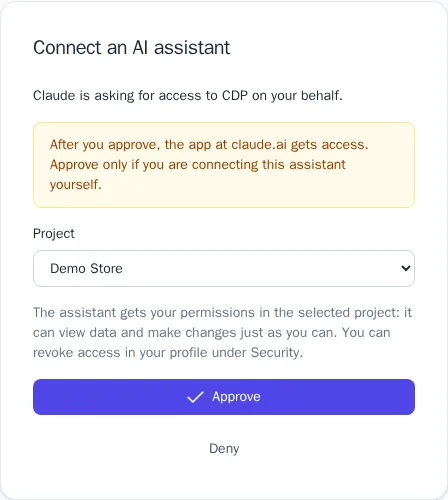
One connection works with one project. To let the assistant work with another project, add the connector again and choose that project.
Connect with an API key
Claude Code, Cursor, and other developer assistants can connect with a project secret key. Create a key in API keys with the permissions the assistant needs; it's best to use a separate key for each assistant. Pass the key in the Authorization header:
claude mcp add --transport http crm https://crm.example.com/mcp --header "Authorization: Bearer cdp_sk_…"
Without the header, Claude Code and Cursor offer to sign in with your account, as described above.
What the assistant can do
- Permissions. When connected through your account, the assistant gets the permissions of your role in the project. If your role changes, the assistant gets the new permissions right away, and if you're removed from the project, the connection stops working. Permissions of a role limited to specific journeys or segments don't apply through the assistant; only project-wide permissions do. When connected with a key, the key's permissions apply.
- Personal data. The assistant sees email addresses, phone numbers, and other personal data in plain form only with the Unmasked personal data permission; otherwise they're masked.
- Confirmation. Starting a campaign, publishing a journey, deleting, awarding points, issuing promo codes, and sending events are marked for the assistant as irreversible actions, so it asks for your confirmation before doing them.
- Reference. The assistant knows the formats of segment rules, journeys, reports, and templates, as well as your project's events, traits, integrations, and templates, so it can build them from a description.
Example requests
- "How much revenue did campaigns bring in over the last 30 days? Compare it with the previous month."
- "Build a segment of customers who have ordered more than twice but haven't visited the website in two weeks."
- "Create a journey: a welcome email after sign-up, then after two days check for a purchase, and if there isn't one, send an email with a promo code from the welcome pool."
- "Why won't the 'Autumn sale' campaign start?"
- "Show the funnel from product view to order by traffic source."
Revoke access
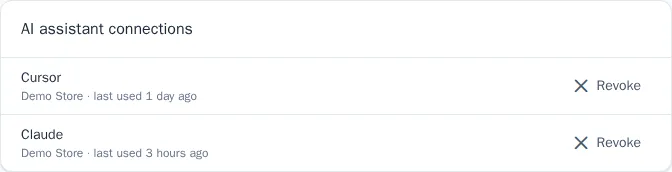
Connections made through your account are listed in your profile under Security → AI assistant connections, with the assistant name, the project, and when it was last used. Click Revoke, and the assistant loses access immediately. Access with a key is revoked together with the key in API keys.
Action log
Changes made by the assistant appear in the project audit log marked via MCP. The author is you (when connected through your account) or the key. Connecting the assistant to a project and revoking access are also recorded in the log.