Loyalty program
The loyalty program awards customers points for orders and other actions. Customers can use points to pay for part of their next orders right at checkout in your store. Tiers raise the earn rate for regular customers, and referrals bring in new ones: the friend gets a gift, and the member who invited them gets points for the friend's first order.
The section is in the menu under Engagement → Loyalty. All roles can view the program and its members; Manager and above can change the settings, rules, and points.
Create a program
- Open Loyalty and click Create program. The program is created paused.
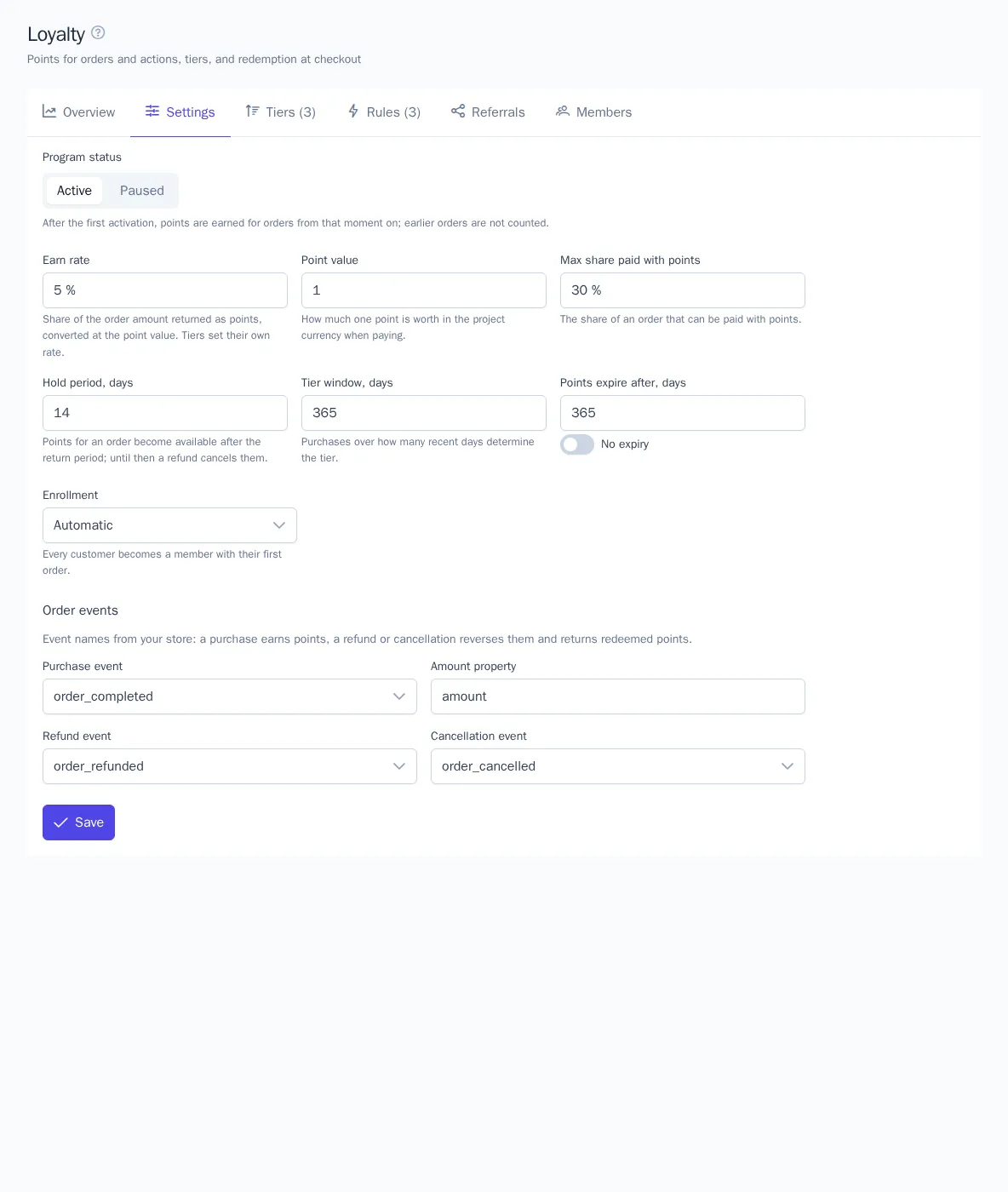
- On the Settings tab, check the fields (see the table below) and click Save.
- Switch the program status to Active. Points are earned for orders from that moment on; earlier orders aren't counted.
| Field | What it means |
|---|---|
| Earn rate | The percentage of the order amount returned as points. Tiers have their own rate |
| Point value | How much one point is worth in the project currency when paying |
| Max share paid with points | The share of an order that can be paid with points |
| Hold period, days | Points for an order become available after the return period. Until then, a refund of the order cancels them |
| Points expire after, days | How many days after being earned the points expire. You can also make them never expire |
| Enrollment | Automatic: every customer becomes a member with their first order; On request: only customers who joined on the site or through the API |
| Purchase event, amount property, refund and cancellation events | By default, order_completed with the amount in amount, order_refunded, and order_cancelled, as the store plugins send them |
A refund cancels the points for the order in the same proportion, and a cancellation cancels them in full. Points the customer redeemed in that order are returned to their account.
Overview
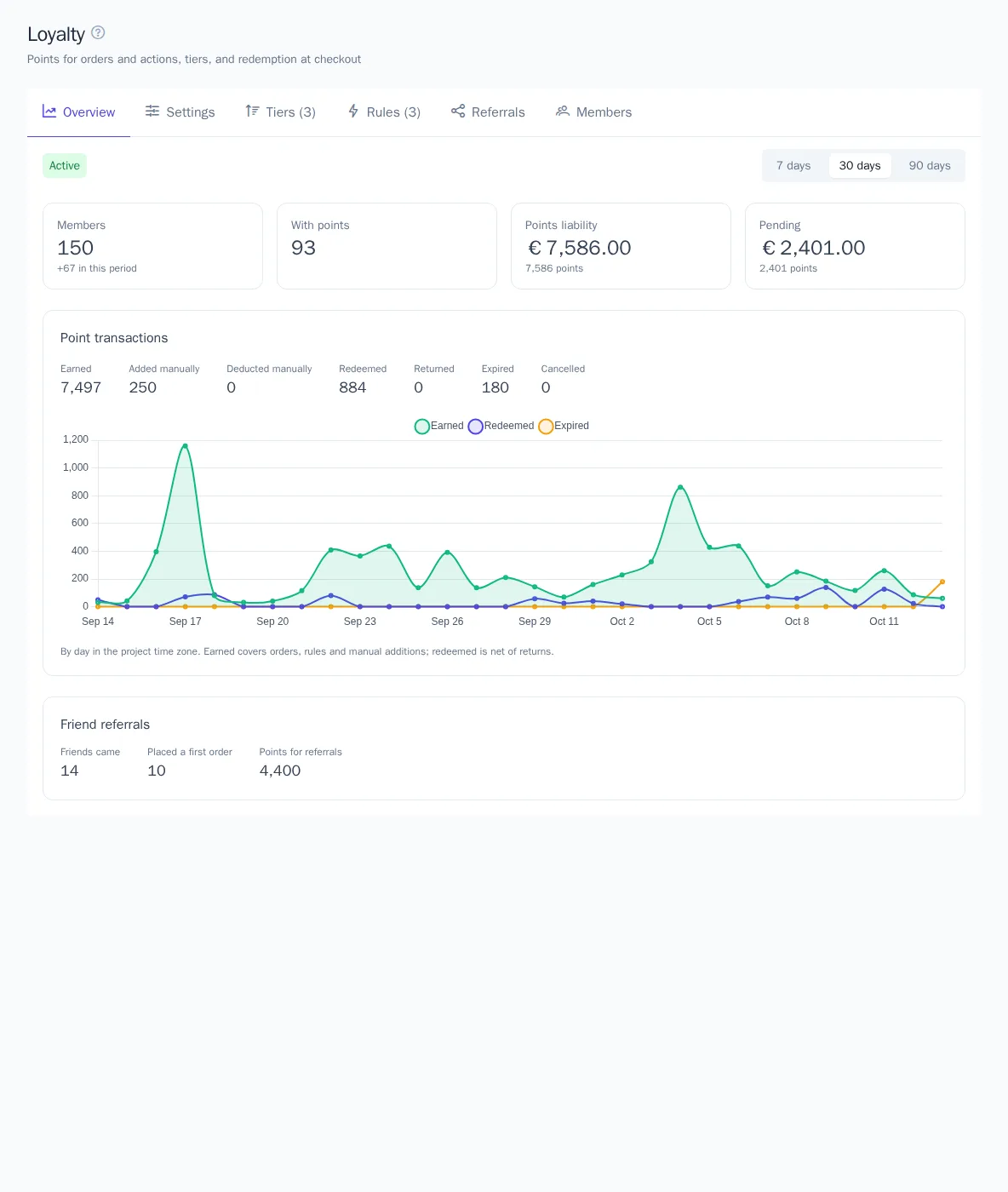
The Overview tab shows, for the selected period, how many points were earned, redeemed in orders, added or deducted manually, returned, and expired, and how many members the program has. Points liability is the available and pending points in money: the amount the store may give away as discounts. Days are counted in the project's time zone.
Tiers
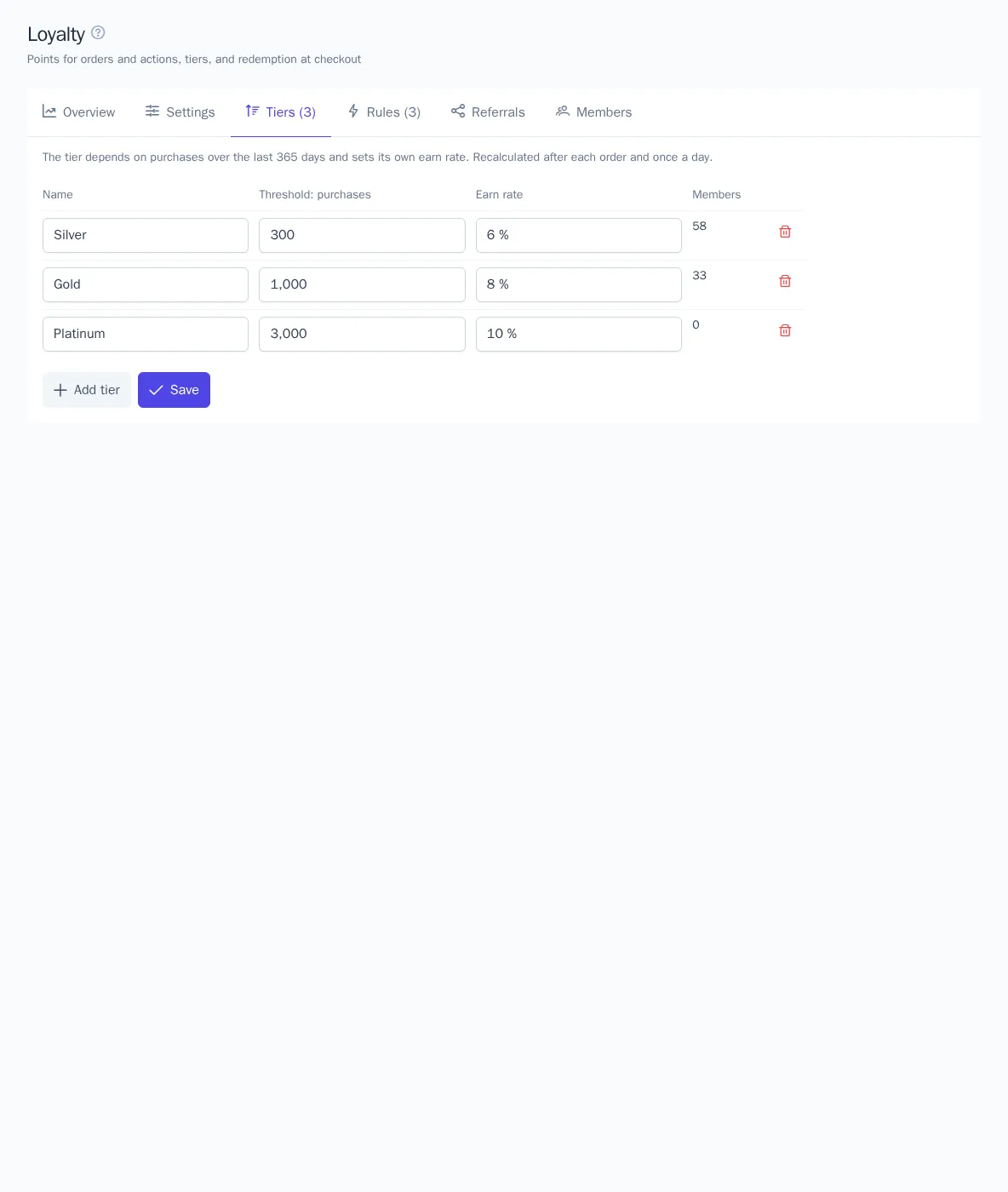
A tier depends on the customer's purchases over a window (the Tier window, days field, 365 by default), minus refunds. Each tier has its own threshold and earn rate.
- On the Tiers tab, click Add tier.
- Enter a name, a purchase threshold, and an earn rate. You can set up to 10 tiers.
- Click Save.
The tier is recalculated after each order, refund, and cancellation, and once a day, when old purchases leave the window. The new rate applies from the next order. Tiers are available from the Growth plan (plans).
Earning rules
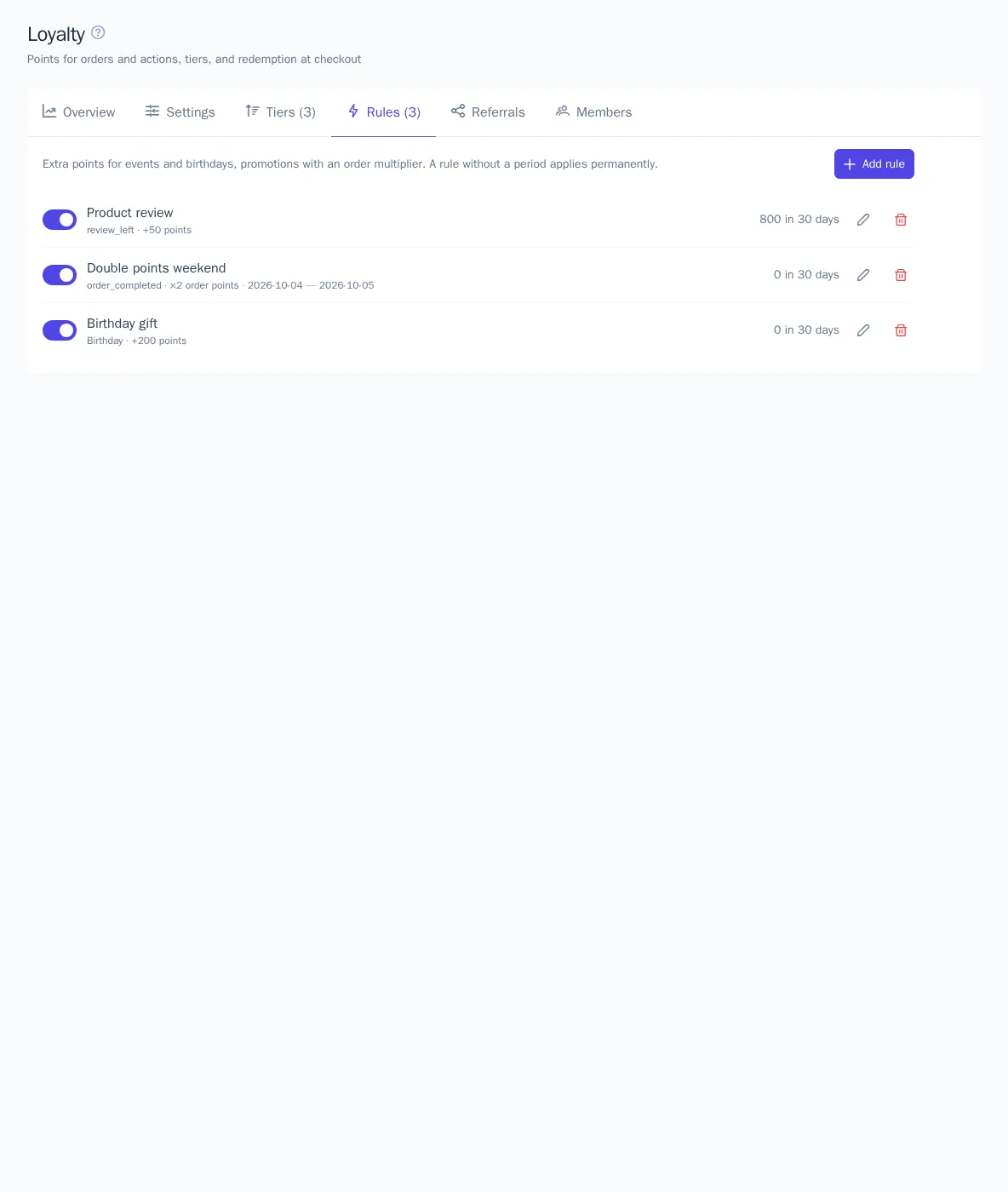
Rules award points for other actions: signing up, leaving a review, subscribing, or a birthday. Click Add rule on the Rules tab and set:
- the event: any project event or Birthday (from the
birthdaytrait, once a year); - conditions on event properties, as in segment filters;
- the formula: Fixed points, Percent of amount, or Order multiplier, for example, "double points" on weekends for the purchase event;
- limits: Times per member, At most once every N days, Max points per award;
- the promotion period: the first and last day in the project's time zone.
The switch in the rule's row pauses it. Next to it, you can see how many points the rule has awarded in 30 days. Rules are available from the Growth plan.
Members
The Members tab lists members by balance, highest first, with search by email, phone, user ID, or profile number and a tier filter. Click a member to open their account: balance, pending points, tier, points expiring soon, invited friends, and transaction history.
Manual adjustment adds (a positive number) or deducts (a negative number) points with a required reason. The reason is shown in the member's history and in the audit log. The customer's account is also shown on their profile card.
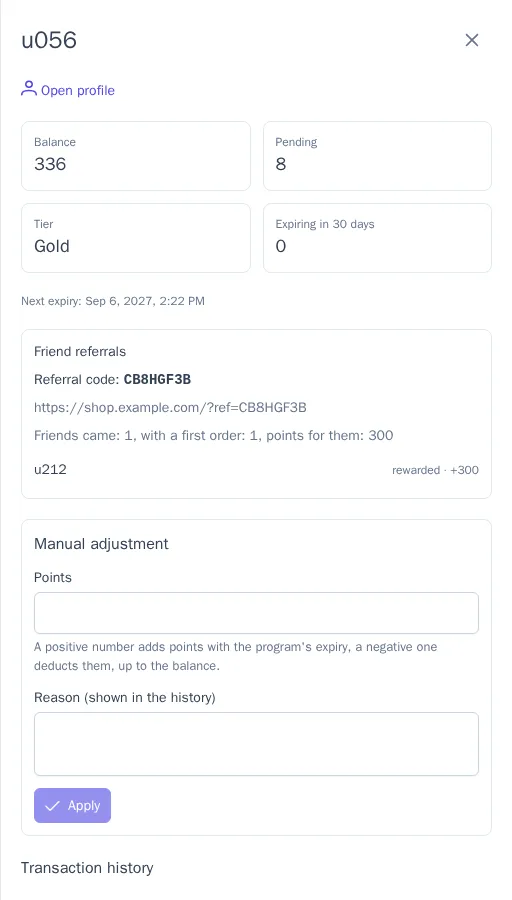
Friend referrals
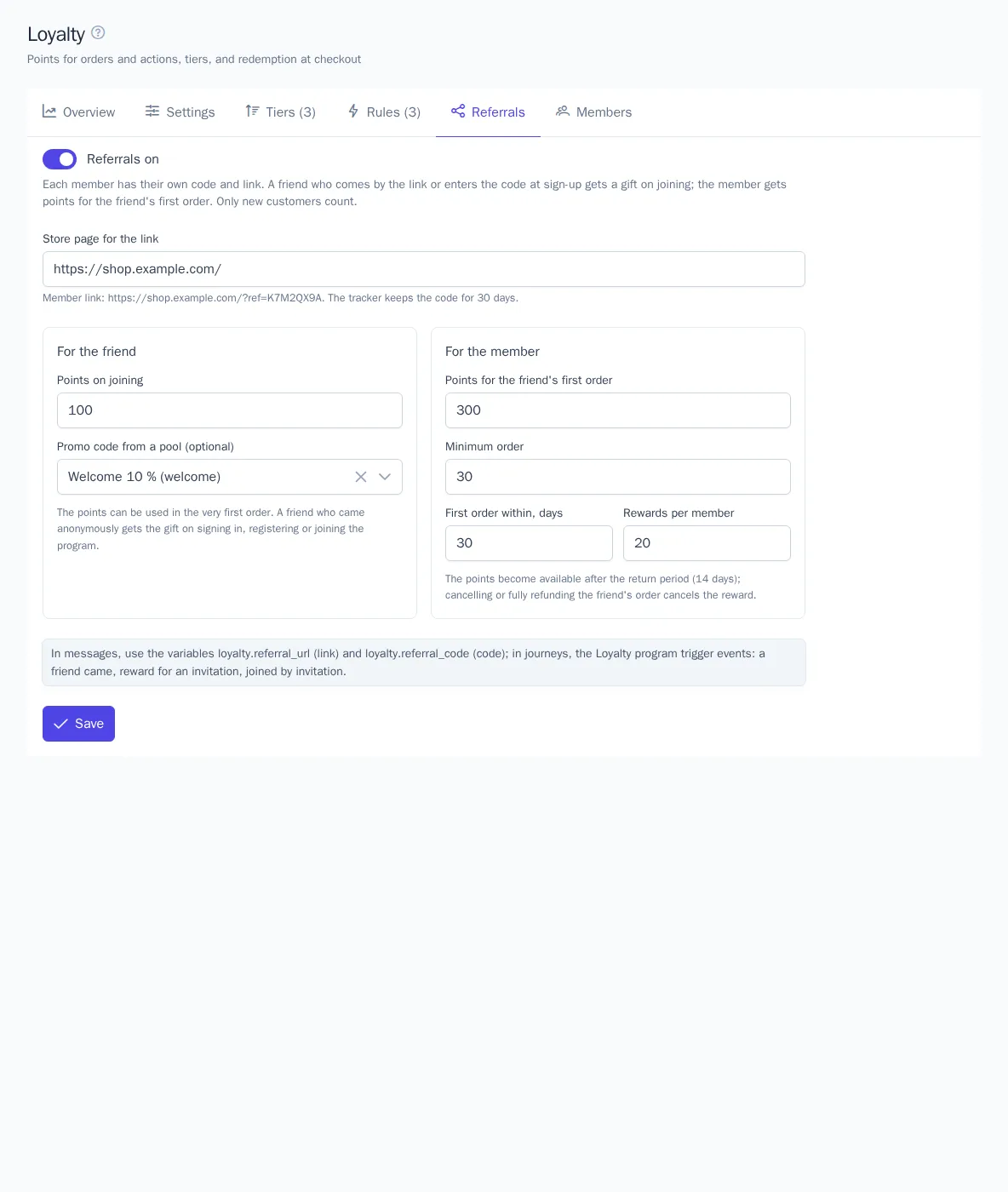
Each member has their own referral code and link: a store page with the ?ref= parameter. The tracker keeps the code for 30 days, and the store plugins pass it on at sign-up.
- On the Referrals tab, turn on Referrals on and fill in Store page for the link.
- In the For the friend block, set Points on joining and, if needed, Promo code from a pool (promo codes).
- In the For the member block, set Points for the friend's first order, the minimum order, the deadline for the first order, and the reward limit per member.
- Click Save.
A referral counts only for a new customer: one without orders and not the member themselves. The friend gets the gift on joining the program, and can use those points in the very first order. The member who invited them gets points after the return period of the friend's order; cancelling or fully refunding that order cancels the reward. In messages, the link and code are the loyalty.referral_url and loyalty.referral_code variables. Referrals are available from the Growth plan.
Points in the store
The OneTrace.ru plugins for WooCommerce, Magento 2, and 1C-Bitrix show a signed-in customer their balance in the cart and at checkout. The customer enters how many points to redeem: the points are reserved for 30 minutes and confirmed with the order number. The store's customer account shows the balance, history, referral link, and promo codes. A custom store connects to the same operations through the API.
Journeys and messages
- The Loyalty program trigger starts a journey on joining, earning, redemption, expiry, an expiry warning (30, 7, or 1 day ahead), a tier change, and referrals.
- The Award points node gives points to a journey participant, and the Issue a promo code node gives a code from a pool.
- Templates have
loyalty.*variables: balance, tier, expiring points and their date, and the referral link. - The journey template gallery has ready-made journeys in the Loyalty category: Points expiring soon, New tier, Welcome points, and Invite a friend.