Live chat
Live chat brings customer questions from your website and from Telegram, WhatsApp, and Viber into a single window. Your reply goes back to wherever the question came from, and the customer's profile is shown next to the conversation: contacts, rewards, segments, and recent activity.
The Chats section is in the menu right below the dashboard. The number next to it is the conversations awaiting a reply. All roles can view conversations, operators can reply, and Manager and above can configure the chat. For support staff, there's the Operator role: conversations, replies, and customer profiles, without segments, journeys, campaigns, or settings (members and roles).
Operator window
On the left is the list of conversations:
- Mine: conversations you're the assignee of;
- Queue: conversations without an assignee;
- All open and Closed.
You can filter the list by channel. Search finds a customer by name, email, or phone, and a conversation by the text of its last message. A conversation has three states: Awaiting reply means the customer wrote last, Awaiting customer means you replied, and Closed.
In the middle is the conversation itself. Press Enter to send a reply and Shift+Enter for a line break. Whoever replies first to a conversation from the queue becomes its assignee. You can change the assignee in the list above the conversation, and the Take button assigns the conversation to you. The Close button ends the conversation: a website visitor is asked to rate the reply from 1 to 5 stars. If the customer writes again, a new conversation starts. You can Reopen a closed conversation.
The sparkles button next to send, Draft reply, writes a reply with AI, and the bot's replies are marked with sparkles and signed "(bot)". See AI in chat.
On the right is the customer: contacts, loyalty program rewards, segments, recent activity, and traits. The Open profile link takes you to their full profile. Without the personal data permission, contacts are masked.
Above the list is My status: Online, Away, or Offline. The website chat considers you available only in the Online status. The speaker icon turns on the sound for new messages, and Enable notifications turns on browser notifications while the tab is in the background.

Operators and canned replies
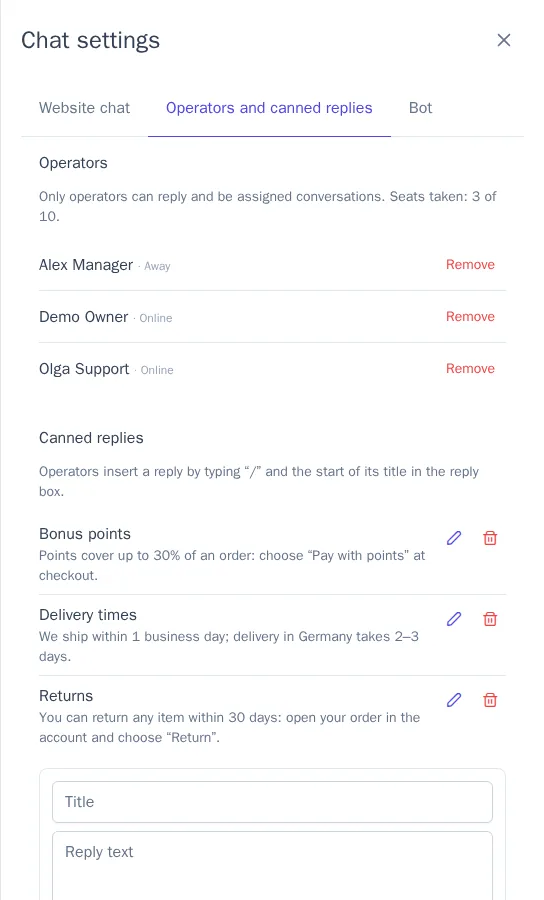
Only operators can reply to customers and be assigned conversations: members with the reply permission who have taken an operator seat. The number of seats depends on the plan: Starter has 2, Growth has 10, and Enterprise is unlimited. This way, administrators who only view conversations don't take up seats.
- You can take a seat with the Become an operator button in the chat window.
- In Chat settings → Operators and canned replies, a manager adds an operator from the members with the reply permission and removes them. A removed operator's open conversations return to the queue.
Canned replies are ready-made answers to frequent questions: delivery, returns, payment. Add a title and text. In the reply box, type "/" and the start of the title to insert a canned reply and adjust it before sending.
Website chat
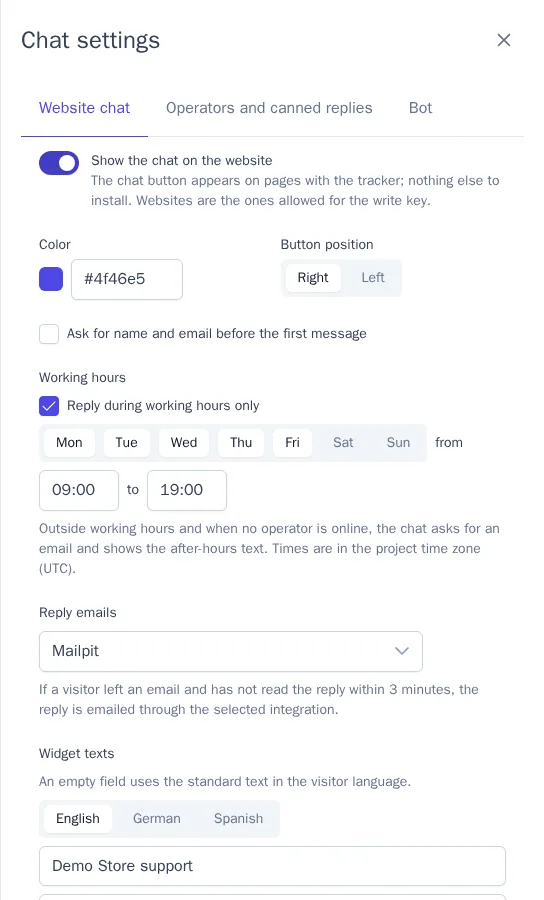
The chat button appears on all pages with the tracker. There's nothing to install, including in the WooCommerce, Magento, and 1C-Bitrix plugins. The chat works on the same websites that are allowed for the write key.
The settings are in Chat settings → Website chat:
| Setting | What it does |
|---|---|
| Show the chat on the website | Turns the button on and off on all of the project's websites |
| Color, Button position | The color of the button and header; the button in the bottom right or bottom left corner |
| Ask for name and email | A form before the first message. The email from the form is saved to the visitor's profile |
| Working hours | Days of the week and times in the project's time zone |
| Reply emails | The email integration used to send the reply to a visitor who has left the website |
| Widget texts | The title, greeting, and after-hours text for each project language. An empty field uses the standard text in the visitor's language |
Outside working hours, or when no operator is in the Online status, the chat shows the after-hours text and asks for an email so that you can reply later.
If a visitor left an email and hasn't read the reply within 3 minutes, the reply is emailed to them with a link to the website. For a single conversation, such an email is sent at most once every 30 minutes.
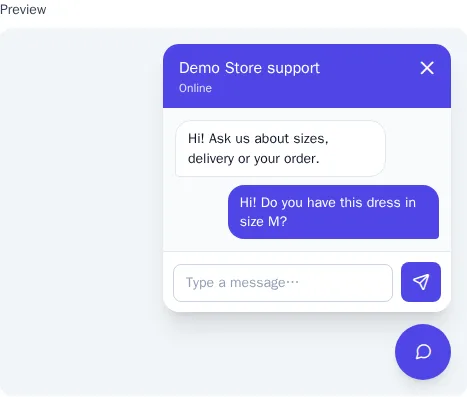
At the bottom of the settings is the Preview: the chat as a visitor with the selected language will see it.
To hide the chat on a particular project website, a developer passes chat: false to the tracker: cdp.init('cdp_wk_…', { chat: false }).
Messengers
From the Growth plan, customer messages to your Telegram bot, in WhatsApp, and to your Viber bot become conversations in the same window. The reply goes to the same messenger through its integration. The status is shown under the reply: Queued, Sent, Delivered, or Not delivered with the reason.
- WhatsApp allows free-text replies only within 24 hours of the customer's last message. After that, you can't reply from the chat: send a WhatsApp template from a journey or via the API.
- If a messenger integration is turned off or deleted, you can't reply in its conversations.
- On the Starter plan, messenger messages remain profile events (
telegram.message,whatsapp.message,viber.message) and don't reach the operator window.
Journeys and segments
In a journey, choose the Chat trigger and an event: conversation started, conversation closed, conversation rated, or bot handed the conversation over (AI in chat). For a rating, you can set a range with Rating from and Rating up to, and for any event, a channel. For example, a journey for ratings from 1 to 2 can send an apology email with a promo code, and one for a rating of 5 can ask for a review of the store.
Event properties are available in the template: {{ event.properties.rating }} is the rating, and {{ event.properties.channel }} is the channel (web, telegram, whatsapp, viber).
In segments, you can use the events Chat conversation started, Chat message, Chat conversation closed, and Chat conversation rated with the rating property. For example: "wrote in the chat in the last 30 days" or "gave a rating below 3".
Bots and helpdesk via API
A bot or an external support system reads conversations and replies to customers via the API. You need a secret key with the Chat conversations and Chat answers and closing conversations permissions (API keys).
# Conversations awaiting a reply
curl "https://cdp.onetrace.ru/api/v1/conversations?status=open" -H "Authorization: Bearer $CDP_SECRET_KEY"

# Reply to the customer
curl -X POST https://cdp.onetrace.ru/api/v1/conversations/{id}/messages \
  -H "Authorization: Bearer $CDP_SECRET_KEY" -H "Content-Type: application/json" \
  -d '{"body": "Your order was shipped today. We will email you the tracking number."}'
A reply via the API doesn't take up an operator seat. In the operator window, it's signed with the key's name and marked "(API)", and the conversation's assignee doesn't change: a staff member steps in when the bot can't handle it. To close a conversation, use POST /api/v1/conversations/{id}/close. The same actions are available to AI assistants.
Plan
The website chat is available on all plans. AI in chat (drafts and the bot) is available on any paid plan and charged by usage from the balance. Operator seats: Starter has 2, Growth has 10, and Enterprise is unlimited. Conversations from messengers are available from the Growth plan (plans).